


"Direct" and "Unknown" traffic are warning signs of broken attribution. If you’re seeing these categories dominating your reports, it’s likely your campaigns’ true performance is hidden due to tracking gaps like stripped UTM parameters, cookie issues, or cross-domain missteps. Here’s the good news: You can fix this in just 15 minutes a week.
Key Takeaways:
- Direct traffic often results from missing UTM tags, link shorteners, or redirects.
- Unknown traffic stems from inconsistent UTM naming, tracking pixel gaps, or CRM disconnects.
- These issues distort metrics like CAC and LTV, leading to poor budget decisions.
Quick Fixes:
- Add UTMs to all external links using a tracking link builder.
- Standardize UTM naming conventions (e.g., always use lowercase).
- Install tracking pixels across all domains and verify with debugging tools.
- Audit weekly to catch spikes in Direct/Unknown traffic early.
By following a simple 5-step weekly routine, you can clean up your data, uncover which campaigns are driving revenue, and avoid wasting ad dollars. Start with small fixes, and watch your reports transform into actionable insights.
Marketing Attribution Mistakes Costing You Sales (And How to Fix Them) feat. Scott Desgrosseilliers
What Direct and Unknown Traffic Mean in SegMetrics

In SegMetrics, "Direct" and "Unknown" labels highlight revenue and leads that can’t be traced back to their sources. This doesn’t mean customers remembered your URL or stumbled upon it by chance. Instead, it points to gaps or failures in your tracking setup. Let’s break down what causes these errors and how they can skew your data.
What Causes Direct Traffic
"Direct" traffic shows up when UTM parameters are stripped from your links before a conversion happens. This often occurs when links are shared through platforms like WhatsApp, Slack, or email, where referrer data gets lost – a phenomenon referred to as "dark social" [2]. Additionally, tools like link shorteners (such as Bitly) or redirect chains (like link-in-bio tools or checkout flows) can remove source data during redirections if they aren’t properly configured [2].
Another common issue is using UTM parameters on internal links – for example, linking from your homepage to a sales page. This resets session tracking, breaks attribution, and makes it look like a new "Direct" visit [2]. Misusing UTMs in this way can make your own site navigation appear as a source of Direct traffic.
What Causes Unknown Traffic
"Unknown" traffic arises from errors in tracking parameters, as outlined below. For instance, manually entering UTMs with inconsistent capitalization (e.g., "Facebook" vs. "facebook") creates separate, unrecognized sources in your reports [2]. Missing SegMetrics tracking pixels on third-party pages, like those hosted on LeadPages or ClickFunnels, also leads to Unknown traffic because UTM data isn’t captured [5].
If your CRM contains historical UTM data that hasn’t been mapped to SegMetrics custom fields, that information remains isolated and shows up as Unknown in revenue reports [5][6]. Attribution windows further complicate matters: SegMetrics uses a 90-minute window for opt-ins and a 24-hour window for purchases [4]. If a conversion happens outside these timeframes without a new tracked click, the system can’t connect it to the original source, defaulting to Unknown.
Understanding these issues is essential for maintaining clean data. Regular weekly audits of your SegMetrics setup can help ensure your source tracking stays on point.
7 Common Attribution Leaks and How to Fix Them
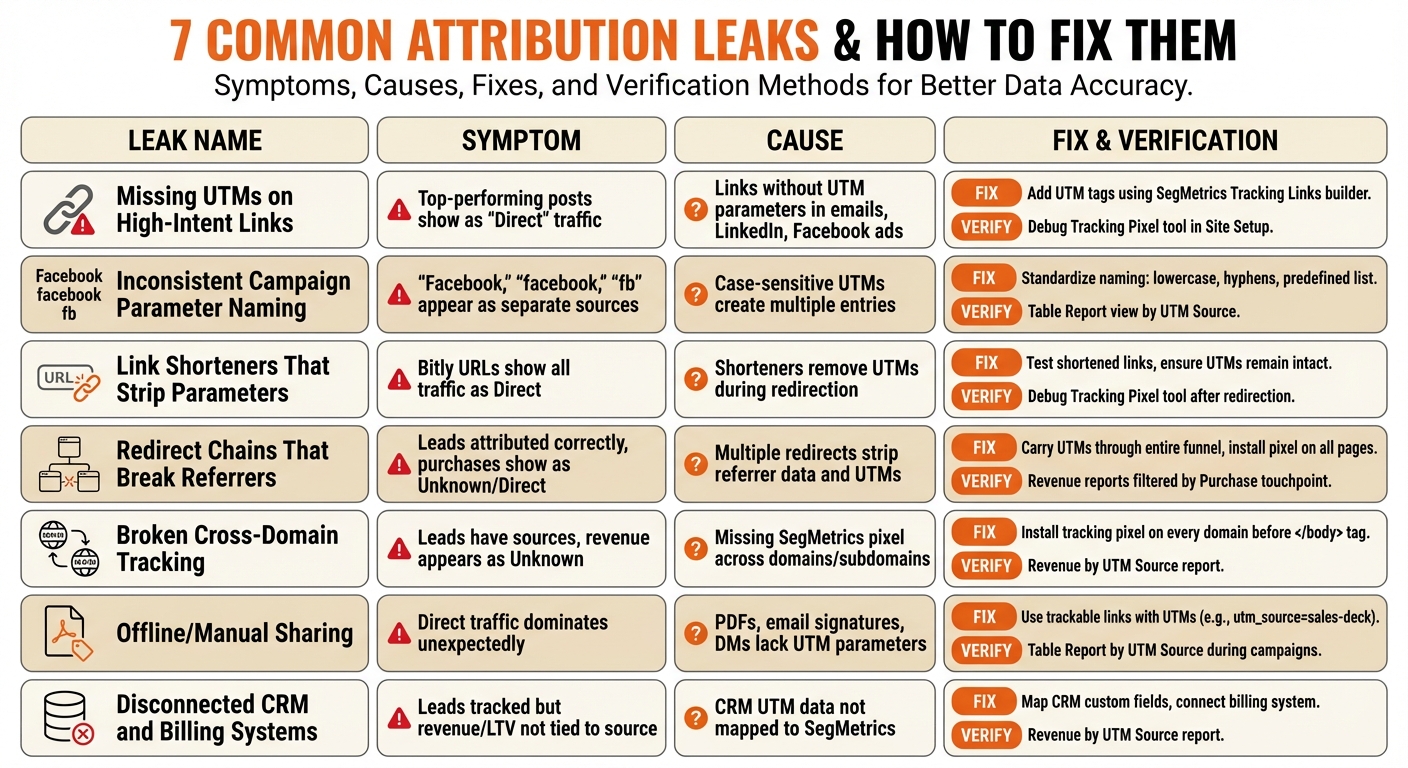
7 Common Attribution Leaks: Symptoms, Causes, and Quick Fixes
When it comes to Direct and Unknown traffic, these seven common attribution leaks can throw off your data. Here’s how to identify and patch them quickly.
Leak 1: Missing UTMs on High-Intent Links
Symptom:
Your top-performing social posts, email links, or ads are being lumped under "Direct" traffic instead of showing their actual source.
Cause:
Links without UTM parameters – like those in emails, LinkedIn updates, or Facebook ads – leave SegMetrics unable to trace where visitors came from, leading to misattribution.
The fix:
Always add UTM tags to external links using the SegMetrics Tracking Links builder. This ensures consistency and avoids errors in naming.
Verify in SegMetrics:
Use the "Debug Tracking Pixel" tool in Site Setup to confirm that UTM parameters are correctly displayed in real time.
Leak 2: Inconsistent Campaign Parameter Naming
Symptom:
Your reports show variations like "Facebook", "facebook", and "fb" as separate sources, scattering your data.
Cause:
UTM parameters are case-sensitive, so inconsistent capitalization or naming creates multiple entries for the same source.
The fix:
Standardize your UTM naming conventions. Use lowercase letters, replace spaces with hyphens, and stick to a predefined list of sources (e.g., facebook, linkedin, email, google-ads). The SegMetrics Tracking Links tool can help maintain uniformity.
Verify in SegMetrics:
In your New Leads or Revenue reports, select "UTM Source" in the Table Report view to catch duplicate entries.
Leak 3: Link Shorteners That Strip Parameters
Symptom:
Shortened URLs (e.g., from Bitly) show all traffic as Direct, even if the original link included UTMs.
Cause:
Some link shorteners remove UTM parameters during redirection or fail to pass them to the final page.
The fix:
Test shortened links to ensure UTMs remain intact. Paste the short URL into a browser, and verify that the final destination URL retains the UTM tags. If not, switch to a shortener that preserves query strings or use full URLs.
Verify in SegMetrics:
Check the Debug Tracking Pixel tool to confirm that the landing page URL still includes the correct UTM parameters after redirection.
Leak 4: Redirect Chains That Break Referrers
Symptom:
Initial leads are attributed correctly, but conversions like purchases or upgrades appear as Unknown or Direct.
Cause:
Redirect chains – where users are bounced between pages (e.g., homepage to checkout to payment processor) – can strip referrer data or UTM parameters.
The fix:
Ensure UTM parameters are carried through every step of the funnel. Install the SegMetrics tracking pixel on all pages in the chain, including custom checkout domains and third-party payment pages. Avoid redirects that drop query strings.
Verify in SegMetrics:
Filter your Revenue reports by the "Purchase" touchpoint to check if conversions are linked back to the original source.
Leak 5: Broken Cross-Domain Tracking
Symptom:
Leads have clear sources, but revenue appears as Unknown.
Cause:
When visitors move between your main domain, subdomains, or third-party tools, attribution breaks if the SegMetrics pixel isn’t installed across all pages.
The fix:
Install the SegMetrics tracking pixel on every domain and subdomain where conversions occur. Place it right before the closing </body> tag. If using server-side tracking, ensure your integration maps data across domains.
Verify in SegMetrics:
Look at your Revenue reports filtered by "UTM Source." A spike in Unknown revenue alongside accurate lead data signals a cross-domain tracking issue.
Leak 6: Offline/Manual Sharing
Symptom:
Direct traffic unexpectedly dominates, even though you know specific offline or manual campaigns are driving visitors.
Cause:
Links shared offline (e.g., in PDFs, email signatures, or DMs) lack UTM parameters, defaulting traffic to Direct.
The fix:
Use trackable links with UTM tags for offline and manual sharing. Add tags like utm_source=sales-deck or utm_source=email-signature to ensure proper tracking.
Verify in SegMetrics:
Run a Table Report filtered by "UTM Source" and compare data before and after implementing tagged links. A drop in Direct traffic during campaigns indicates progress.
Leak 7: Disconnected CRM and Billing Systems
Symptom:
While SegMetrics tracks leads, revenue or lifetime value (LTV) isn’t tied to the original source.
Cause:
Your CRM holds historical UTM data in custom fields that aren’t mapped to SegMetrics. If your billing system isn’t integrated, purchases can’t link back to the original source.
The fix:
Map CRM custom fields for UTM data in the "Configure Custom Fields" section of SegMetrics. Connect your billing system to link transactions with full attribution history.
Verify in SegMetrics:
Filter Revenue reports by "UTM Source" to confirm revenue is tied to specific sources. Click on the "Contacts" number next to a tracking link to see visitor and conversion metrics in real time.
| Leak | Symptom | 1-Minute Fix | SegMetrics Check |
|---|---|---|---|
| Missing UTMs | Best posts show as Direct | Add UTMs via link builder | Debug Tracking Pixel tool |
| Naming drift | Sources fragment | Use controlled vocabulary | Table Report by UTM Source |
| Link shorteners | Short links show as Direct | Validate final URL preserves UTMs | Debug Tracking Pixel tool |
| Redirect chains | Conversions lose source | Preserve UTMs across redirects | Purchase touchpoint filter |
| Cross-domain breaks | Revenue appears as Unknown | Install pixel on all domains | Revenue by UTM Source |
| Offline sharing | Direct becomes biggest channel | Use trackable share links | Table Report during campaigns |
| CRM disconnect | LTV can’t be tied to source | Map custom fields, connect billing | Revenue by UTM Source |
sbb-itb-e8c8399
The 15-Minute Weekly SegMetrics Attribution Audit
Attribution issues often sneak up on you. A missed UTM here, a broken redirect there, and suddenly, "Direct" is dominating your traffic data. Fixing this isn’t about a massive overhaul – it’s about a quick, weekly routine that stops small problems from snowballing.
The goal? Catch sharp increases early and address them before they distort your data. Here’s a straightforward five-step process you can tackle in just 15 minutes each week.
Step 1: Spot Direct/Unknown Trends (2 Minutes)
Start by opening your Revenue Report in SegMetrics and selecting "UTM Source" from the Table Report menu [5][6]. Compare this week’s Direct and Unknown traffic to last week. You’re not worried about minor fluctuations – what you’re looking for are big jumps that suggest something’s broken.
For example, if Direct traffic suddenly jumps from 15% to 35%, that’s not a change in user behavior – it’s a tracking issue.
Step 2: Pinpoint Attribution Drops in the Funnel (4 Minutes)
Switch to the Page View filter and toggle between touchpoints like "First Visit", "Optin", and "Purchase" [4]. This reveals where attribution data is falling off. If leads have clean source data but purchases show as Unknown, your checkout or payment page might be stripping UTM parameters.
Use the Table Report selector to view data by "Page URL" or "Referrer" [4]. Focus on pages with high conversion rates but missing source data – these are likely where attribution is leaking. SegMetrics uses a 90-minute attribution window for Optins and a 24-hour window for Purchases [4], so disappearing data between these stages often points to pixel coverage gaps or redirect issues.
Step 3: Check New Sources and Campaigns (3 Minutes)
Head to your New Leads Report and pull up "UTM Source" or "UTM Campaign" from the Table Report [6]. Look for inconsistencies in naming conventions – things like "Facebook" versus "facebook" versus "fb." These tiny variations can fragment your data and make it impossible to evaluate channel performance [2][6].
If you find non-standardized values, flag them right away. Use the "Add Filter" feature to group all variations into a single segment, then standardize them in your link builder [6]. Addressing this early avoids months of messy, unreliable data.
Step 4: Verify Top Revenue Sources (3 Minutes)
Filter your Revenue Report by "Lead Value" and sort by the highest revenue [5]. Check whether your top-performing sources are actually Direct or Unknown traffic in disguise. If Direct is leading your revenue, it’s not a sign of success – it’s a gap in measurement.
Compare these sources to their conversion rates. High revenue but low conversion percentages often mean traffic is being misattributed. This step helps you separate what’s genuinely working from what’s just a data mirage.
Step 5: Fix Issues and Update Your Log (3 Minutes)
Immediately address any problems you find. Use the Debug Tracking Pixel tool in Site Setup to confirm your fixes in real time [7]. Test URLs to make sure UTM parameters are firing correctly.
Document every fix in your Attribution Fix Log. Note the date, the issue, where it occurred (specific link or page), the fix applied, and leave space to track results during your next audit. This log becomes your safety net – if the same issue pops up again, you’ll know the previous solution didn’t hold.
| Step | Action | Tool/Report |
|---|---|---|
| Step 1: Trends | Identify sharp increases in Direct/Unknown traffic | Revenue Report > UTM Source Table [5] |
| Step 2: Funnel Audit | Find where attribution drops off | Page View Filter > Touchpoint Toggle [4] |
| Step 3: Campaign QA | Catch naming inconsistencies or missing tags | New Leads Report > UTM Campaign Table [6] |
| Step 4: Revenue Check | Ensure top sources aren’t misattributed | Revenue Report > Lead Value Metric [5] |
| Step 5: Fix & Test | Validate fixes with live link testing | Debug Tracking Pixel Tool [7] |
This process doesn’t require a dedicated data team – just 15 minutes of focus each week. By staying on top of these small checks, you prevent Direct/Unknown traffic from becoming a constant headache. Over time, this routine helps you build a cleaner, more reliable attribution system that keeps your data on track.
How to Build a Link Hygiene System
A solid link hygiene system helps prevent problems before they arise – no need for fancy software or a large team, just clear guidelines and someone to oversee the process. By maintaining strict link hygiene, you can avoid attribution errors from the start.
Required UTM Parameters for Every Link
Every marketing link should include Source, Medium, and Campaign to track performance effectively [2][5]. Here’s how they work:
- Source identifies the platform, such as
utm_source=facebookorutm_source=newsletter. - Medium specifies the channel type, like
utm_medium=socialorutm_medium=email. - Campaign groups content under a specific initiative, such as
utm_campaign=AI-feature-launch[2][5].
"You don’t need to use ALL of these parameters to follow best (or better) practices. We recommend using the three common parameters on your important marketing links, but using some (or one) UTM parameters is always better than using none."
- Brian, Customer Success Team at SegMetrics [2]
Optional parameters like utm_content or utm_term can add extra details, but they should only be used when absolutely necessary [2][7].
Naming Rules and QA Checks
Consistency is key when naming UTM parameters. Stick to lowercase letters since analytics tools treat different cases as separate sources [2]. Use hyphens to separate words for better readability, like utm_campaign=summer-sale-2026 [2][5].
"Manually adding UTM tags can introduce errors – like if you call the source Facebook one time and FACEBOOK another time. Some tools are case-sensitive and record those as separate, unique sources, introducing confusion into your marketing analysis."
- Ryan Johnson, Content Strategist, SegMetrics [2]
To avoid these issues, use tools like the SegMetrics Tracking Link builder, which ensures all required fields are correctly filled out and minimizes typos [2][7]. Before launching a campaign, paste the final URL into the Debug Tracking Pixel tool (found in Site Setup) to confirm all parameters are functioning as they should [7].
One golden rule: never use UTM parameters on internal links (e.g., linking from your homepage to a sales page). Doing so triggers new sessions and disrupts your original attribution data [2].
By following these naming rules and performing regular QA checks, you can ensure that your data remains accurate and reliable for weekly audits.
Who Owns Attribution Audits
Assigning a single owner for attribution audits is critical – this role typically falls to the founder or growth lead [9][10]. In smaller businesses, the CEO often takes charge, while larger companies may delegate this responsibility to the CIO or Chief Data Officer [11]. Whoever takes on this role needs the authority to enforce standards and hold the team accountable.
"Data hygiene starts at the top. B2B business leaders need to make clean data a top priority and equip their sales and marketing teams with the data-driven tools they need to succeed."
This person should handle the 15-minute weekly audit, apply fixes as needed, and maintain an Attribution Fix Log. They should also manage a shared "Tracking Links" sheet, complete with approved UTM values and dropdown options for consistent terminology [2].
For larger teams, consider forming a cross-functional data stewardship council with members from marketing, sales, and analytics. This ensures that everyone stays aligned on the same standards [8][9].
Conclusion: Clean Attribution Leads to Better Decisions
Clear Data Starts with Regular Audits
Spending just 15 minutes a week on attribution audits can transform unclear metrics into reliable data your team can trust [3]. By reducing Direct and Unknown traffic, you can avoid wasting ad dollars on clicks that don’t convert [1]. This allows you to determine Lead Value more accurately and allocate your budget to channels that deliver, all while maintaining a strong ROI [5].
When attribution is accurate, ad platforms can focus on signals that actually drive revenue [1][3]. SegMetrics, which tracks over $30 billion in annual revenue and has analyzed more than 500 million leads, shows how fixing attribution leaks can significantly lower acquisition costs [1]. The result? Tangible savings and better resource allocation.
"It’s not enough for us to just track our ads right after the first click because someone may convert 6 months later. SegMetrics has made a huge difference in our ability to track what we are actually getting from our paid ads."
These steps pave the way for smarter, data-driven decisions.
Build Your Attribution System Today
Start with a simple 15-minute attribution audit to unlock these benefits. Use the Attribution Fix Log template to document issues and track progress over time. Standardize your UTM parameters with the SegMetrics Tracking Link builder to avoid case-sensitivity errors [2][7], and double-check everything using the Debug Tracking Pixel tool before launching new campaigns [7].
With clean attribution as your foundation, you can confidently make decisions that drive growth. Take advantage of our UTM naming schema and audit checklist during your 14-day free trial [1][3]. Begin your weekly audits, log fixes, and ensure consistent UTMs with SegMetrics tools for clear, actionable insights.
FAQs
How can UTM parameters help reduce Direct and Unknown traffic in attribution reports?
UTM parameters are essential for cutting down on Direct and Unknown traffic by ensuring each link is tagged with crucial details like source, medium, and campaign. This kind of detailed tagging enables attribution tools to pinpoint exactly where your traffic and conversions originate, closing the gaps caused by incomplete or inconsistent tracking.
When UTMs are missing, links often lose vital tracking data during redirects, app transitions, or manual sharing, leading to traffic that can’t be attributed. By applying UTMs consistently, you can achieve a clearer view of how each channel is performing, empowering you to make more informed decisions for scaling based on dependable data.
What are the most common mistakes that cause broken attribution in marketing data?
Broken attribution often stems from missing or misconfigured tracking parameters and disconnected systems. For instance, neglecting to add UTM parameters to high-intent links can cause traffic to be lumped into the Direct category rather than being attributed to its true source. Similarly, inconsistent naming conventions – like using "linkedin" in one instance and "LinkedIn" in another for utm_source – can fragment your data, making it harder to track accurately.
Other culprits include link shorteners stripping away UTM parameters, redirect chains that lose referrer data, and cross-domain tracking failures. Offline links or manually shared URLs without proper tracking can also create major gaps in your attribution. To address these issues, it’s crucial to maintain good link hygiene: enforce UTM standards, stick to clear and consistent naming practices, and routinely audit your source data. These steps ensure your attribution data remains reliable, allowing you to make smarter decisions for growth.
How do I maintain consistent UTM naming conventions for my campaigns?
Maintaining consistent UTM naming conventions requires setting up a clear system with defined rules. Stick to lowercase letters, hyphens, and standardized terms to prevent inconsistencies. Assign a specific person – such as a founder or growth lead – to manage the process and ensure all links adhere to these guidelines.
A practical way to streamline this is by using a shared spreadsheet with dropdown menus for UTM parameters. Regular audits of your campaigns can help identify and fix any deviations. This approach keeps your data organized and ensures your attribution insights remain accurate.